
In February, lvt gave AI agents eyes on Windows apps — a CLI that walks a window’s visual tree and hands an agent structured JSON instead of a screenshot to squint at. A few weeks later it learned to read WPF and picked up a plugin architecture.
Both halves of that are worth separating, because they’re solved differently.
Seeing is a tree, not a picture. lvt walks the app’s own framework structure — XAML, WinUI 3, WPF, WinForms, Win32/ComCtl, Avalonia, Chromium — and hands back elements with real identities, bounds, and properties. Or it emits the UI Automation tree instead, if what you want is automation identity rather than what’s actually on screen. Those are genuinely different views: an element you can see in the visual tree may simply not exist in UIA, and vice versa. Either way, nobody is reading pixels.
Acting falls back in tiers. Where a control exposes a UI Automation pattern, lvt uses it — Invoke, Toggle, SetValue, Scroll — which means asking the control to do the thing rather than moving a cursor across your screen, the same way a screen reader does. Where no pattern exists, it synthesizes input, with the target revalidated and required to stay foreground before each batch. Most clicks take the first path; the fallback exists because real apps are inconsistent about what they expose. Property editing goes through the provider directly, so an agent can set a control’s state without pantomiming a click at all.
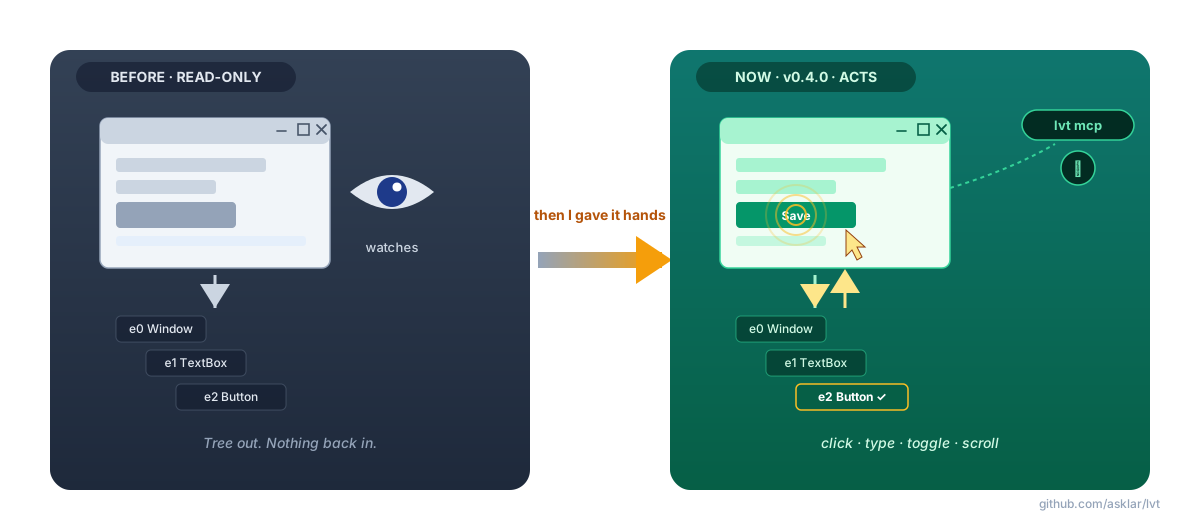
That’s the capability. v0.5.0 — 164 files, ~55k lines — is about making it fast enough to actually use.
Agents can subscribe to the tree now
Until this release, an agent that wanted to know what its last click actually did had to dump the whole tree again and diff it. Fine for a 40-element dialog. Miserable for anything real, and the main reason agent UI automation feels sluggish even when the actions themselves are fast.
Every connected MCP session now exposes exactly one subscribable resource, matching the mode you picked at connect:
lvt://session/<session>/uia-tree
lvt://session/<session>/visual-tree
Standard MCP: resources/list, resources/read, resources/subscribe. Subscribers get notifications/resources/updated, and the next read drains an already-cached patch instead of walking the app again. The first read is a full snapshot expressed as added events; after that you get ordered added, removed, and changed, with old and new values and explicit relocation metadata when something moves or reparents. If a client falls too far behind, the queue is replaced with a fresh snapshot rather than silently dropping events — recoverable beats subtly wrong.
If you’d rather not deal with subscriptions, get_uia_tree_changes and get_visual_tree_changes hand you the same stream as ordinary tool calls.
One design decision worth stating: framework and UIA callbacks are treated as hints, not as the source of truth. UIA defines the events you’d want — structure changed, property changed, text changed, bounds changed — and XAML and WPF raise them. The problem is coverage: it varies by provider, and custom and third-party controls are where it falls apart. So callbacks coalesce and schedule a refresh, but the authoritative diff still comes from a complete tree read. The scheduler is interval-based at roughly 500 ms. Event-driven wakeup is on the list.
Underneath that, framework connections are now persistent. XAML, WinUI 3, WPF, WinForms, UIA, native, and capable plugins keep their connection alive across refreshes instead of rebuilding everything each time — live updates at 500 ms intervals would be untenable otherwise. And there’s real session fencing: stale, cross-session, cross-window, and replacement-target operations get rejected instead of quietly acting on the wrong UI, which is a failure mode I’d rather never debug again.
And there’s a GUI now
A CLI is the right shape for an agent and an awkward one for a person. A tree is a spatial thing; reading it as text means holding the structure in your head. The Viewer is for humans. That’s the whole justification.
lvt Viewer is a standalone WPF app, in the spirit of Visual Studio’s Live Visual Tree and the old Inspect tool from the Windows SDK. Drag the crosshair onto any top-level window and you get its tree, live. It updates in place — selection and expanded nodes survive elements appearing, disappearing, or reparenting, which is the part that makes it usable rather than just a demo. There’s a property panel that loads asynchronously and filters by name or value, and you can actually edit properties: strings, booleans, integers, enums, provider-defined commands. Set, clear, read the effective value back.
It switches between UI Automation mode and the framework-native visual tree, which turns out to be the fastest way to understand why an automation script is failing — the element you can see in the visual tree may simply not exist in UIA. Nodes are colored by framework: Win32, XAML/WinUI 3, WPF, WinForms, Avalonia, Chromium, UIA.
One thing worth knowing if you’re writing against the MCP surface: the Viewer has no private path into lvt. It starts one long-lived lvt mcp --allow-input process and does everything — tree reads, live updates, actions, property edits — through the same public interface your agent gets. So anything you watch it do is something you can make your agent do, and it’s a reasonable way to explore what’s available before you write the code.
It ships as its own archive, lvt-viewer-v0.5.0-x64.zip — x64, .NET 10 Desktop Runtime, extracted as a whole directory, because it carries a complete matching lvt runtime with it.
How it reaches inside an app
Real Windows apps are rarely one framework end to end. A WPF app hosting a WinUI 3 island via XAML Islands is one HWND containing two completely different notions of what a tree is.
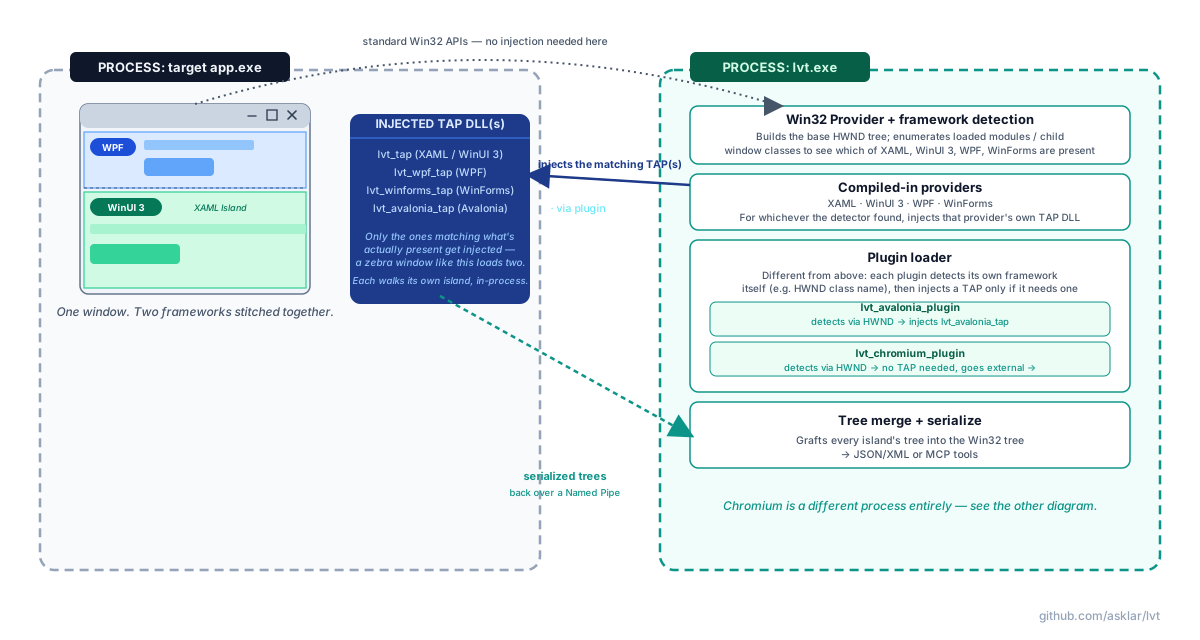
lvt injects a separate TAP DLL per island it actually detects, each walking its own framework from the inside and shipping results back over a named pipe.
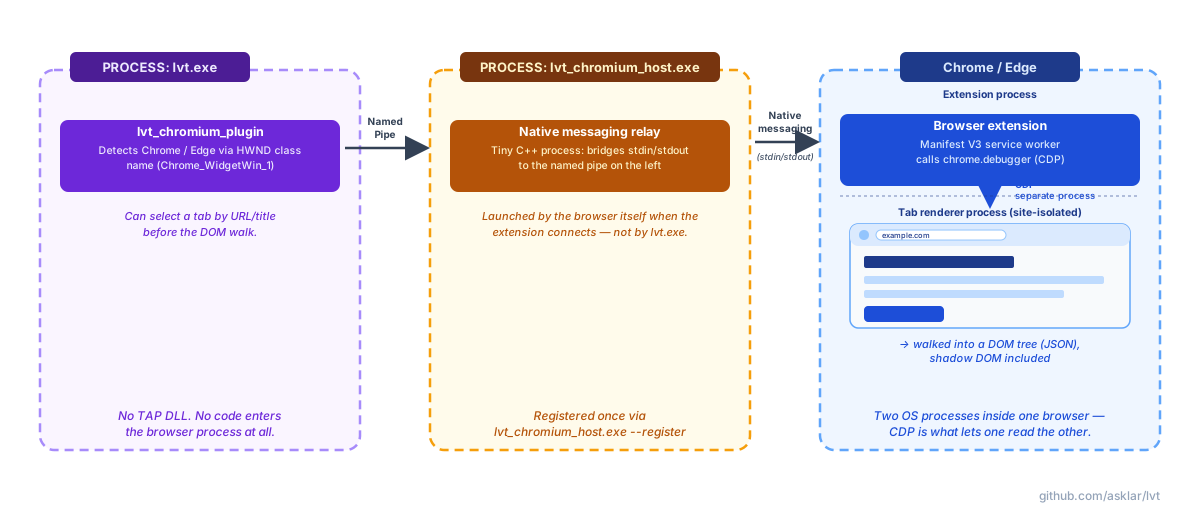
Chromium refuses to play along, correctly — injecting into a browser to read its DOM is what Chrome’s security model exists to prevent. So lvt doesn’t. lvt_chromium_plugin talks over a named pipe to lvt_chromium_host.exe, a small relay that the browser itself launches when the extension connects, and a browser extension walks the DOM via chrome.debugger. Nothing is injected into the browser; the only code inside it is an extension you installed.
Also from v0.4.0, if you missed it: every CLI mode became a verb (dump, click, watch, query, mcp) instead of a pile of flags, plus durable element keys, lvt watch, the WinForms provider, and lvt_core as a proper CMake/vcpkg package. Building out release packaging is also how I discovered the WinForms TAP DLL had never once been included in a release zip — built, tested, never copied into the artifact. There’s a packaging test now.
Try it
/plugin install asklar/lvt
Or grab a zip from the v0.5.0 release. The CLI ships for x64, x86, and ARM64; the Viewer is the separate x64 archive. MIT-licensed. The bundled Copilot CLI skill checks its own version against the latest release and updates itself.
Next up: event-driven wakeup to replace the interval scheduler, property editing for external plugins, and ARM64 for the Viewer. Two of the current boundaries are deliberate and will stay — --fast trades arbitrary custom XAML properties for speed on live ticks, and native operations that can’t be verified safe stay read-only. I’d rather refuse an edit than corrupt a process.
Connect with me on LinkedIn if you want to talk about any of it.